 Pallet
One spreadsheet, reviewed prices, printable tags
The fastest useful label workflow starts with accurate product rows. Give each row a recognizable title, unit quantity and UPC where available. PalletMargin can research Amazon reference prices, apply your store percentage, and generate tags for approved products. You also get a priced inventory CSV and XLSX with the store package.
A barcode is an identifier, not a price database. Printing a tag does not register an item in your point-of-sale system. Your POS must recognize the same identifier and have the correct shelf price before the product can scan correctly at checkout.
1. Choose the store workflow
Sign in and upload your Excel or CSV manifest. Select Sell in my store, then choose the percentage of Amazon pricing you want to use. At 60% of Amazon, a $100 reference becomes $60 before rounding. That is a 40% discount, not a 60% discount.
Choose a rounding option and run analysis. Inspect the market evidence before accepting a price. A different bundle, size or generation can make a seemingly attractive reference price misleading. Missing market data should lead to review, not a made-up shelf value.
2. Approve each shelf price
Open Edit output, check the title and final store price, and confirm that you checked the product and price. Only approved, ready products belong in the printable tag output. Review quantity too: the number of labels should reflect the units you intend to put on shelves.
For a simple example, two identical lamps priced at $29.99 need two labels with the same product identifier. A damaged lamp sold at a different price needs a deliberate inventory and POS decision rather than an unexplained discount on an otherwise identical label.
3. Print and test one sheet
Purchase the store price tag and barcode package for the selected manifest, then download the PDF. The current layout uses Avery 5160-compatible US Letter sheets with 30 labels per sheet. Print at 100% or Actual size; Fit to page can shift the label alignment.
Test on plain paper before using label stock. Hold the test sheet against a label sheet to check alignment. Scan a printed barcode with the scanner you use in the store and confirm the item and price in your POS. Download the inventory spreadsheet as a separate reference for reconciling your shelf quantities.
Product UPCs versus internal barcodes
PalletMargin uses supported product identifiers where available and generates an internal Code 128 identifier when needed. Internal identifiers are for your own inventory workflow. They are not newly assigned retail UPCs and should not be represented as manufacturer product codes.
Check your POS import requirements before importing the inventory CSV. Column mapping and barcode support vary by system; PalletMargin does not automatically sync the file to every POS. Keep identifiers as text so spreadsheet software does not remove leading zeros.
See a sample output
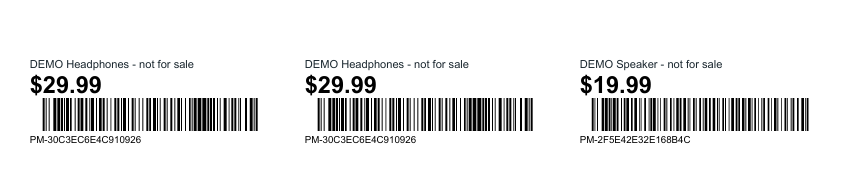
These files were generated with PalletMargin’s exporter using fictional demonstration inventory. Prices are illustrative; the sample is not market research or a ready-to-publish listing.
Download sample barcode tags PDF